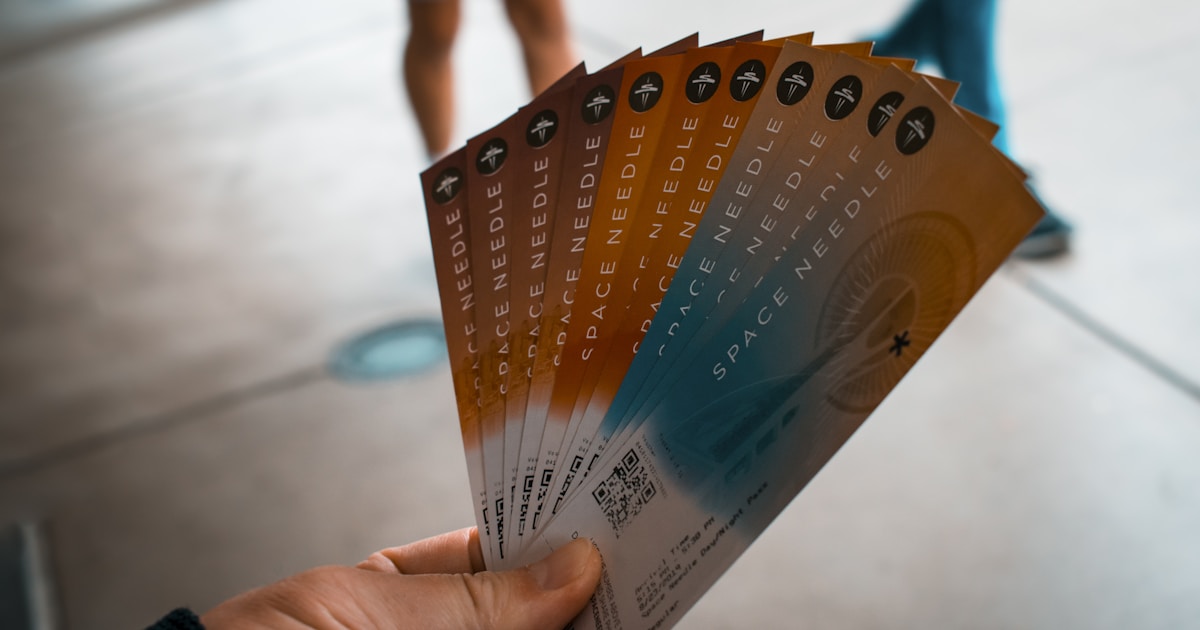
You sold 300 tickets in a weekend. Every one needs a different name, seat, and QR code sitting on the same layout, all of them ready before doors open Friday. Doing that by hand is an evening you don't have, and you already spent this week on the venue, the caterer, and the run of show. This playbook turns your attendee spreadsheet into 300 finished, on-brand tickets without opening a design tool 300 times.
The mechanic is simple. Build one ticket template, point it at your attendee list, and let every row render into its own image. Below is the exact sequence, plus the parts that usually go wrong when people try it with a design editor or a generic bulk QR tool.
📋 Before you start: you need three things. A finished attendee list (name, ticket type, seat, order ID), a single ticket design you're happy with, and a place to send the output (email, print queue, or a wallet pass). If your list is still changing, that's fine. The whole point is that you can re-run it.
Why the ticket job breaks by hand
The copy-paste trap
A ticket is the same layout 300 times with four fields swapped out. That's not design work, it's data entry wearing a design tool's clothing. Open the editor, duplicate the artboard, retype the name, nudge the seat number, paste the QR code, export, repeat. Somewhere around ticket 80 the exports start drifting. A name runs long and overflows its box, a seat number lands a few pixels off, one ticket keeps last night's placeholder text. Now you're proofreading 300 files instead of making them.

*Photo by Ainur Khakimov on *Unsplash
Where the errors hide
The dangerous mistakes aren't the ones you can see. If ticket 214's QR code came from row 213, the layout looks perfect and the attendee gets turned away at the door. Manual placement makes every QR code a chance to grab the wrong cell. At check-in volume, one mismatch per hundred is a line forming while a staffer reprints on the spot.
The batch pattern: spreadsheet in, tickets out
The fix is to stop treating each ticket as a file and start treating the whole event as one job. You design the ticket a single time, lock it to your brand, and every attendee row fills it in.
Step 1: build the template once
Lay out the ticket the way you want the finished thing to look. Fixed elements like the event name, your logo, and the background stay put. The parts that change per attendee become slots: name, ticket tier, seat, date, and a QR field. In Lemtika you build this in the web app, or import a design you already made in Canva, Figma, or PowerPoint. Once it's set, it's locked to your brand so every render matches.
Step 2: line up your columns
Your spreadsheet columns map to the template slots. One column per field, one attendee per row. A CSV of 300 rows is 300 tickets waiting to happen.
- Name → the headline slot
- Ticket type → the tier badge
- Seat or table → the seating line
- Order ID → the QR field
Step 3: run the batch
Upload the sheet. Every row comes back as a finished image, named by the row data so the ticket for row 214 is actually attendee 214's ticket. 300 rows, 300 tickets, one pass. Render number 300 looks identical to render number one because the template is deterministic: same template, same brand, same output every time.
| Approach | How the 300-ticket job goes |
|---|---|
| By hand | One file at a time in a design editor. Slow, drifts off-brand by ticket 80, and every QR code is a manual paste that can grab the wrong row. |
| AI image generator | Fast but off-brand and different every time. It can't place an exact seat number or a working QR code, and it bills per image. |
| Lemtika (curated template) | Upload the sheet, get 300 identical, on-brand tickets. Every field lands where you put it, every QR matches its row, no per-image fee. |
*Photo by Jonathan Ikemura on *Unsplash
The details that trip people up
QR codes, one per row
A ticket QR is only useful if it's unique and tied to the right person. Put the scannable value (an order ID or a check-in URL) in its own column and let the template render a QR for each row from that cell. Because the value comes straight from the sheet, the code on ticket 214 is always attendee 214's code. No copy step, no mismatch.
*Photo by David Andic on *Unsplash
The Thursday change, and the re-run
Someone upgrades from general to VIP the night before. Two attendees swap seats. A name was spelled wrong on the order. With a hand-built batch, a change means hunting for that one file and redoing it. With the batch pattern, you fix the cell and re-run. The corrected ticket comes back matching all the others, because nothing about the layout was ever touched by hand.
💡 Tip: run a test batch of five rows first and scan the QR codes with your actual check-in app before you render the full list. Confirm the numbering, the layout, and the scan behavior on a handful, then send the other 295 in one go.
Getting tickets to attendees
Once the images exist, delivery is the easy part. Email them as attachments, drop them into a wallet pass, or send the batch to print. If your registration runs on your own platform, the same template is available over Lemtika's API, so a ticket renders the moment someone checks out instead of waiting for you to make it that night.
*Photo by Katherine McAdoo on *Unsplash
What the workflow looks like once it's built
The first event takes an hour to set up the template. Every event after that is a spreadsheet and a click. Sell 300 tickets or 3,000, add a session, change the venue, and the job stays the same size: update the sheet, run the batch, done before doors open. The evening you used to spend hand-placing names goes back to running the actual event.
🔑 The takeaway: a ticket is data, not design. Build the template once, keep your attendee list clean, and every ticket becomes a row you already have instead of a file you have to make.
Start with one ticket template in the Lemtika web app, upload a five-row test CSV, and scan the results. When it works, the other 295 are one upload away.
FAQ
How many tickets can I generate at once?
As many as you have rows. A batch of 300 and a batch of 3,000 are the same workflow: upload the sheet, get one finished image per row. The template renders identically at any volume.
Can each ticket have a unique QR code?
Yes. Put the value you want encoded (an order ID or a check-in URL) in its own spreadsheet column, and the template renders a QR for each row from that cell. The code always matches the attendee on the same row.
What if my attendee list changes after I've generated tickets?
Fix the cell and re-run. Because the layout is never edited by hand, the corrected ticket comes back matching every other ticket. Upgrades, seat swaps, and spelling fixes are a sheet edit, not a redesign.
Do I need a designer to build the ticket template?
No. You can build the template in the Lemtika web app with no code, or import a design you already made in Canva, Figma, or PowerPoint. Once it's set, it's locked to your brand and reused for every event.
Can tickets render automatically when someone registers?
Yes. The same template is available over Lemtika's API, so your registration flow can render a ticket the moment an attendee checks out. The image exists before you'd otherwise have started making it.
How much does it cost to run a big batch?
Lemtika is a lifetime deal: pay once, with no subscription and no per-image fee. A batch of 3,000 costs the same to run as a batch of three.